
Can an Old Tablet Run a Home Assistant Wall Panel?
An older Android tablet may work as a Home Assistant screen if its browser can load your dashboard and the touchscreen responds reliably. A model name or release year cannot tell you how well a used device will behave. Test the tablet with your own dashboard, Wi-Fi and household before you drill holes or buy a mount.
A useful family panel puts everyday controls in reach, returns to the right screen after idle time and behaves predictably after a power cut. Set it up on a table first and use it for several days. That trial will tell you more than a list of tablet specifications.
Editorial note: This article was prepared with AI assistance and checked against Home Assistant and Fully Kiosk documentation as of October 26, 2026. We reviewed the documented features; we did not test a particular tablet, charging setup or motion wake in a home.
Key facts: will the tablet work?
Check the whole path from a tap to the result you expect:
- The tablet connects to your home Wi-Fi where you plan to mount it.
- Its installed browser opens your Home Assistant address.
- Dashboard cards respond without distracting delays.
- Text remains readable from the distance where people will use the panel.
- The tablet keeps the page open and does not repeatedly drop Wi-Fi or restart the browser.
You do not need a kiosk app for this first check. Open Home Assistant in the browser, sign in, and leave the selected dashboard on screen. This simple test can reveal trouble with the display, touch input, Wi-Fi and day-to-day access.
If the page loads but scrolling stutters or some cards take a long time to appear, simplify the dashboard and try again. Camera feeds, large graphs and custom cards may behave differently from basic light controls. Test the collection of devices your household actually plans to use.
Make the panel easy for the household
The first screen should answer ordinary questions quickly: is the light on, what is the room temperature, is the door closed, and where is the bedtime routine? Keep the controls people use every day near the top. Put occasional settings on another view.
Home Assistant supports multiple dashboards, so you can give a wall tablet its own layout and default screen. The built-in Home dashboard groups entities by area and uses tile cards. If that layout does not fit your household, create a separate dashboard and choose the cards for the screen and the people who will use it. Home Assistant also recommends a separate user profile when the wall tablet needs a different default dashboard. See the Home Assistant dashboard guide.
Ask another person in the household to use the panel without instructions. If they have to hunt through room names, decode technical labels or back out of several menus, simplify the first view. Check that the common actions are visible without scrolling from the planned mounting position.
Browser and Fully Kiosk have different jobs
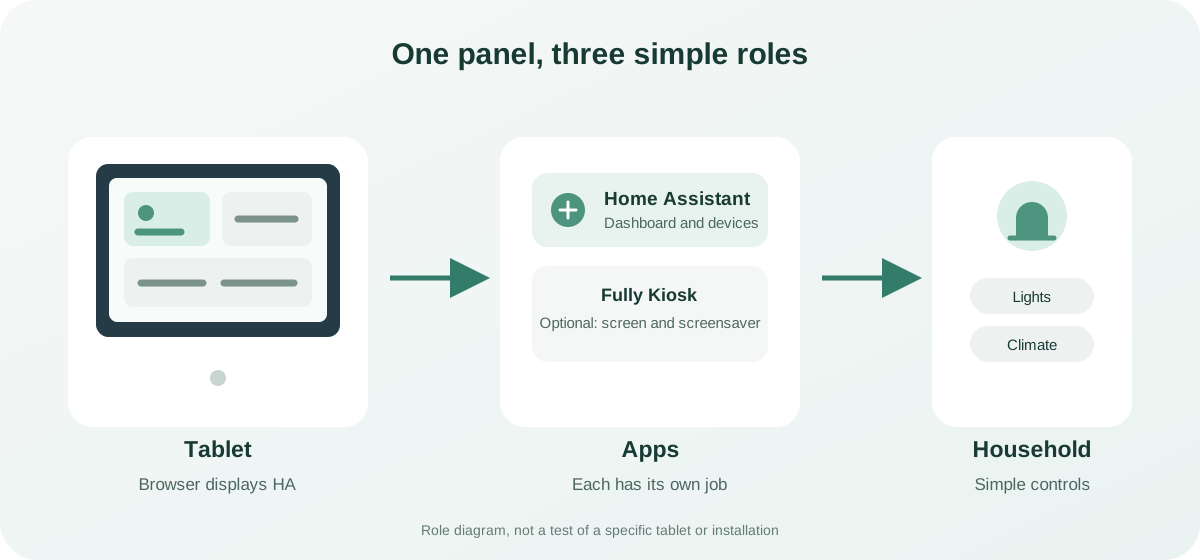
Home Assistant provides the dashboard and controls your devices. A browser on the tablet displays that web page. Fully Kiosk Browser is a separate Android app for showing websites in fullscreen and controlling aspects of the tablet, such as its screensaver, brightness, screen state or start page.
For an initial trial, the browser already on the tablet and a home-screen shortcut may be enough. First find out whether the household likes the dashboard. Consider Fully Kiosk if you also need a persistent fullscreen view, browser auto-start, a screensaver or screen wake controls.
The Home Assistant Fully Kiosk integration can report tablet status and control functions such as the screen, screensaver and loaded URL. The integration requires Fully Remote Admin, which the current Home Assistant documentation says needs a paid Fully Plus licence. You will also need the tablet's local address and its Remote Admin password. This requirement is for controlling Fully from Home Assistant; it does not prevent a browser from opening the dashboard without that integration. Read the Home Assistant Fully Kiosk integration requirements before enabling it.
Screensaver and motion-wake behaviour can depend on the app version, settings, Android permissions and the tablet itself. Test each feature on your device instead of assuming that camera-based motion detection or automatic wake will work everywhere. If children or guests will use the tablet, make sure an adult can exit kiosk mode and reach the device settings.
Set up account access
A shared tablet is visible to everyone who can reach it. Create a separate Home Assistant account for the panel and give it access to the dashboard and controls the household needs. Avoid leaving your administrator session on a public screen when ordinary household actions do not require it.
Test the account directly: can it change the lights, climate or modes that appear on the panel? Hide controls and information that guests or children should not see. After the screen sleeps, the browser closes or the tablet restarts, check which page opens and whether the account needs to sign in again.
Use the address and connection method you expect for your own Home Assistant instance. Do not expose Fully Remote Admin to the public internet just to operate a wall panel. Keep the tablet and Home Assistant integration on the network you intended, and never publish the Remote Admin password or put it in a public URL.
Plan for power, screen and placement
Leave the tablet at the intended location for a few days before mounting it. Check Wi-Fi near the wall, glare in the morning and evening, touch comfort, and whether the cable or adapter gets in the way. Set the screen height for the adults and children who will use it.
Continuous charging may be convenient, but watch the tablet and charger for heat and inspect the battery. If the case is swelling, a cover or display is lifting, or the device becomes unusually hot, unplug it and do not mount it. Battery-care and charging-limit options vary by device and Android version; verify them on the exact tablet before relying on them.
Fully Kiosk settings can control the screensaver, brightness and screen timer. The Home Assistant integration exposes some of these functions as entities and controls. Start with a simple setup: wake the screen by touch and let it dim or turn off after a chosen idle period. Add motion wake only after testing it in the actual room. A front camera may not detect someone in low light, and some households may prefer not to leave it active.
Test it before mounting
Run a short trial in the mode the household plans to use:
- Open the chosen dashboard in the browser and tap every control you intend to keep on the first screen.
- Ask another household member to turn on a light, open a room view and return to the home screen without help.
- Leave the tablet idle for several hours, then check Wi-Fi, the page and the Home Assistant session.
- If you plan to keep it plugged in, check the tablet and adapter temperature while charging.
- If you choose Fully Kiosk, test fullscreen, screensaver, wake and the route back to settings. Repeat after restarting the tablet.
- Check the intended mounted position for readability, glare, cable routing and Wi-Fi signal.
Write down what happened: which tasks people completed unaided, which cards they had to search for, and what the tablet showed after idle time or a restart. Those observations are a better guide than the device's age or marketing name.
When the panel is unreliable
| What you see | What to check |
|---|---|
| The dashboard loads slowly or freezes | Compare the normal browser with kiosk mode. Temporarily remove camera feeds, graphs and custom cards, then check whether the problem follows one view. |
| A sign-in screen appears after idle time | Check the Home Assistant session, browser data settings and Android battery restrictions. Test access safely before weakening account protection. |
| Motion does not wake the screen | Check camera permissions, Fully settings, room lighting and how the tablet behaves with the screensaver disabled. Motion wake is not guaranteed on every model. |
| Home Assistant cannot see the Fully device | Check that Remote Admin is enabled, the tablet is reachable at its local address, the integration has the correct password and the required licence is active. |
| Wi-Fi drops only near the wall | Test the tablet at a few nearby locations before mounting. Change the panel location or network if the connection remains unstable. |
| The tablet gets hot or drains quickly | Check the charger, background apps, brightness and whether the screen stays on continuously. Stop using and charging a device with a swollen battery. |
Frequently asked questions
Do I need Fully Kiosk Browser?
No. Start by opening Home Assistant in the browser already on the tablet. Fully Kiosk adds optional fullscreen and Android device controls; the Home Assistant integration with Fully is configured separately.
Can I connect Fully to Home Assistant without paying?
The Home Assistant dashboard works independently of the Fully integration. Current Home Assistant documentation says control through the Fully integration requires Remote Admin, which requires a Fully Plus licence. Check the developer's current terms before purchasing.
Which tablet is guaranteed to work?
There is no guarantee without testing the specific device. Check browser availability, battery and display condition, Wi-Fi at the installation point, dashboard response and behaviour after idle time. Two tablets of the same model can differ in battery health and software version.
How do I make the panel easier for guests and children?
Keep a few familiar, clearly named controls on the first view, remove technical entities and check the permissions of the tablet's Home Assistant account. Test the screen with the people who will use it before installing a mount.
Does the tablet work without an internet connection?
The browser needs network access to your Home Assistant server. Remote access and individual integrations depend on how your system is configured; a local tablet does not make external services local.
For a Russian-language Home Assistant build, see Habab Home. Its installation method and available features should be checked against your computer, connected devices and panel requirements.
Sources: Home Assistant dashboards, Home Assistant Fully Kiosk integration, Fully Kiosk.
Discuss your wall panel
If you want help turning these checks into a plan, send a short brief in Telegram. Include the tablet model and the actions your household wants on screen. We can clarify what to check next before proposing paid setup work.
About the service "Turn an Old Tablet into a Home Assistant Wall Panel in 2026: Check Before Mounting"
See whether an old Android tablet can run a Home Assistant wall panel. Check the browser, family dashboard, account access, Wi-Fi, screen and power before mounting it.